Let's find out what's really wrong with your Wi-Fi.
Answer a few simple questions and run two Wi-Fi tests. We'll work out the technical details for you.
You’ll check your Wi-Fi near the router and again where you’re having trouble. No tech skills needed.
Already purchased a Fix Plan?
Recover it here without repeating the diagnostic. Use the email address from checkout and your Alldigital order number.
Recover my purchased Fix Plan
Your order number is in the “Your AllDigital Wi-Fi Fix Plan is ready” email we sent after your purchase. It starts with AD-. If you can't find the email, check your Spam or Junk folder.
How does the internet come into your home?
Choose the option that sounds closest. It’s fine if you’re not sure.
Which NBN setup looks like yours?
Look near your modem/router and choose the closest match. The colour of your router does not matter.
Who sends you the internet bill?
This helps us show the right equipment next.
Which Wi-Fi box looks most like yours?
Choose your modem/router from the pictures below. If yours is not shown, you can take a photo underneath the choices.
Use a photo and AllDigital will try to identify it for you.
Take a photo of your Wi-Fi box
Keep the whole box in the picture. AllDigital will try to identify the provider, model and Wi-Fi generation.
Take a new photo or choose one already on your phone. Your photo is analysed for this check and is not saved by AllDigital.
Photograph the label underneath or on the back so the model number is readable.
Which best describes your Wi-Fi setup?
Look around your home and choose the option that matches what you have.
What are you using for the test?
Choose the device you’ll use for both Wi-Fi tests.
What's happening?
Tell us about your home.
Test near your main Wi-Fi box.
Take your device within 1–2 metres and stay connected to your home Wi-Fi.
Technical check
Now test where the problem happens.
Technical check
Do you have Ethernet / DATA sockets in your home?
Look for a wide phone-style socket labelled DATA, LAN, CAT5e or CAT6.
If you prefer a wireless-only solution, choose that option. You can always change it later.
We will recommend a wireless mesh system to improve your coverage.
Is there a DATA socket near the Wi-Fi problem?
A wired connection can be faster and more reliable, but it’s optional. If you prefer a wireless-only solution, choose that.
Choose the option that best matches what you want to use near the problem area. If you are unsure, wireless-only is the simplest choice and you can reassess later.
How much setup are you comfortable doing?
We’ll tailor the instructions to you.
About fixed cabling
You can plug equipment into existing DATA sockets yourself. Use a registered cabler to install, alter or re-terminate fixed telecommunications cabling.We found the likely problem.
Try this first — free.
Don't buy anything yet. Make one change, then measure the result.
Preview the personalised plan we can build from your equipment, home and measurements.
Did it improve?
Technical check
Run your Wi-Fi retest
Return to the same problem location and, where possible, use the same device you used for the original test. This keeps the before/after comparison meaningful.
We’ll compare this retest with your original problem-room result and your near-router baseline.
Technical check
We’ve measured the problem. Now see exactly what you’ll get to fix it.
Your results give us enough information to move beyond generic ISP troubleshooting and build a practical plan for your home.
Wi-Fi coverage inside your home
This is your real diagnostic result, not an example. It is calculated from the answers and speed measurements you just supplied.
We have already built the detailed solution for this result.
The paid Fix Plan contains the specific system architecture, compatible equipment, quantity, placement, setup sequence and retest instructions selected for your home.
No subscription. Built from this diagnostic.
What’s happening inside your home
This visual uses your measured speeds to show the likely coverage problem in plain English.
Where your Wi-Fi is reaching — and where it is falling away
This is the style of coverage map your Fix Plan can use to explain the problem visually. It is an illustration based on your measurements, not a professional RF survey.
If your current equipment is capable enough, we’ll tell you to keep it rather than replace it unnecessarily.
Used when the diagnosis shows the home needs more coverage, with placement guidance specific to the problem area.
We won’t automatically recommend one just because Wi-Fi is weak. The plan explains whether this type of device makes sense for your setup.
Put the new Wi-Fi unit in the right location.
Follow the relevant cable/app/button steps.
Use plain-English setup instructions.
Run Alldigital again and prove the improvement.
You’ve probably already tried your internet provider.
If the connection is fast beside your main Wi-Fi box but collapses elsewhere in the home, repeatedly restarting equipment or checking the incoming NBN service may not address the real problem. Alldigital uses the measurements inside your home to focus on what happens after the internet reaches your Wi-Fi equipment.
What is included in your paid Fix Plan
This section describes the product you are buying. Your unlocked plan will be populated from your own diagnosis, equipment, rooms and measurements.
Your home. Your equipment. Your measurements.
sections
Your actual speed measurements and what they tell us.
Why the problem points to coverage, equipment, the incoming connection or one particular device.
What you can keep, what should change, and whether anything actually needs to be purchased.
A simple placement diagram showing where equipment should go — and why putting it directly in the dead zone can be a mistake.
Compatible equipment choices without making you decode networking specifications.
What plugs in where, what app/button to use and what you should see at each stage.
Your original measurements are carried into the plan so you can prove whether the change actually worked.
A next-step decision path based on the new measurement — not another “restart your modem” loop.
Example of the report format and guidance style
The information below is a demonstration household only. It does not describe your home. Your paid Fix Plan will replace this example with your own equipment, rooms, measurements and recommendation.
Upstairs bedroom coverage problem
Telstra Smart Modem Gen 3 · two-storey home
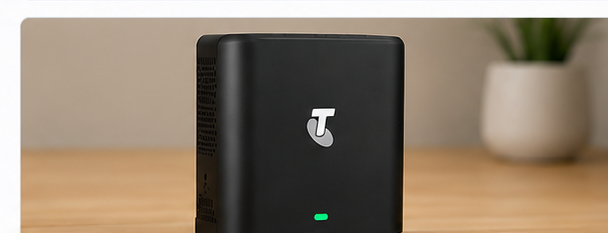
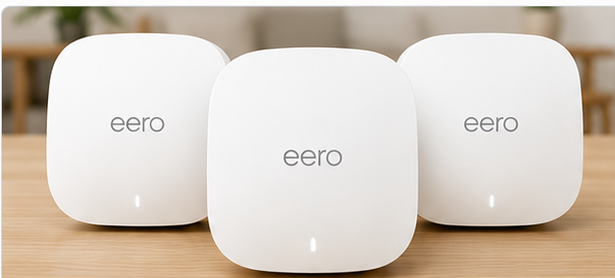
462 Mbps beside the modem indicates the incoming service can deliver strong performance.
The major loss occurs between the main Wi-Fi box and the upstairs bedroom.
Extend Wi-Fi from a location that still has a strong connection — not from inside the dead zone.
Don’t put the new unit where Wi-Fi is already bad.
Why: the extra Wi-Fi unit first needs a reliable connection back to your existing network. Putting it deep inside a weak-signal room can simply repeat a poor connection.
Pictures and plain-English descriptions help confirm you have the right box.
The plan explains the target area and common placement mistakes.
Follow the relevant app/button/connection steps for your setup.
Run the same test again and compare against your saved result.
Stop guessing. Fix the Wi-Fi problem you actually measured.
You’ve already done the testing. Your Fix Plan turns those results into a practical next-step solution.
Your full personalised Fix Plan opens immediately after purchase. The recommendation is generated from the diagnostic you have just completed.
Payment successful — your Fix Plan is ready
Your Stripe payment has been verified and your personalised plan has been unlocked.
Your diagnosis is complete.
Unlock the full step-by-step Fix Plan built from your equipment, home and Wi-Fi test results.
Get your Personalised Wi-Fi Fix Plan
- Your diagnosis explained in plain English
- What to keep, improve and add
- Verified equipment recommendation where available
- Placement guidance for your home
- Setup sequence and retesting
- Print / Save to PDF
Already purchased? Recover my Fix Plan
Enter the email address used at checkout and your Alldigital order number.
Personalised Wi-Fi Fix Plan
Built from your diagnosis and measurements.
One-off purchase. No subscription.
Your paid order is stored by the Alldigital server. This browser also keeps a local access token for convenient reopening.

Your Wi-Fi Fix Plan
Built from your equipment, home details and measured Wi-Fi performance — not a generic buying guide.
Your Wi-Fi Fix Plan
Your plan will appear here based on your equipment, home and test results.
What we think is happening
Your Wi-Fi path
What should change — and what should not
Existing equipment
Coverage
Only if needed
The most practical next step
Recommended equipment category
Extra Wi-Fi / mesh unit
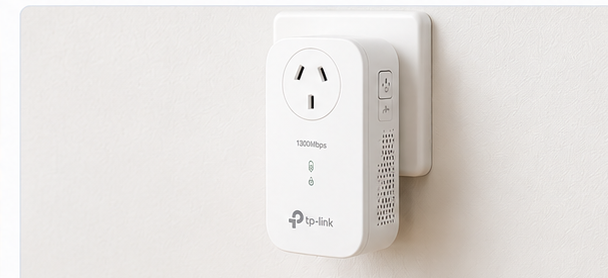
Generic plug-in extender
Do not buy one simply because the Wi-Fi is weak. The right answer depends on how your current equipment works and where coverage falls away.
Alldigital only names a specific product where provider/manufacturer compatibility has been validated. Otherwise the plan deliberately stays at category level.
Choose how you’d like to get this fixed
Your technical recommendation comes first. These options are offered only after the diagnosis has selected the appropriate equipment or next step.
Buy the recommended equipment
Use the purchase destination for the product selected in this plan.
Remote setup
We’ll help you configure, optimise and test your recommended equipment. Up to 45 minutes.
Sydney installation
We’ll install, configure, optimise and test your recommended equipment using suitable existing infrastructure.
Service availability: Remote and Sydney services are request-based and subject to current availability. Sydney work may be fulfilled by AllDigital or an appropriate service partner. Complex or permanent cabling work is quoted separately and referred to an appropriately registered cabler where required.
You can use your existing structured cabling
If your home already has Ethernet/data wall sockets and a Home Hub or patch panel, you can connect ordinary pre-made Ethernet patch leads and active equipment such as a network switch, mesh unit or access point to those existing sockets and patch-panel ports yourself.
Example: Router LAN → patch lead → switch → patch lead → Home Hub/patch-panel room port → existing fixed Ethernet cable → room DATA outlet → patch lead → access point or mesh node.
You are simply plugging equipment into existing connection points. The point where a registered cabler is required is when the fixed telecommunications cabling itself needs to be installed, extended, altered or re-terminated, or when a new fixed data outlet is required.
Simple setup sequence
Put the new Wi-Fi unit in the recommended location.
Connect it to power and pair it to your existing system.
Follow the matching app or button process.
Run the same Alldigital test again in the same room.
Before and after
Your next decision
What your home network should look like
Do this in order
Your Alldigital plan is generated from the information and measurements supplied during diagnosis. Recommendations should be rechecked if your equipment or home setup changes.